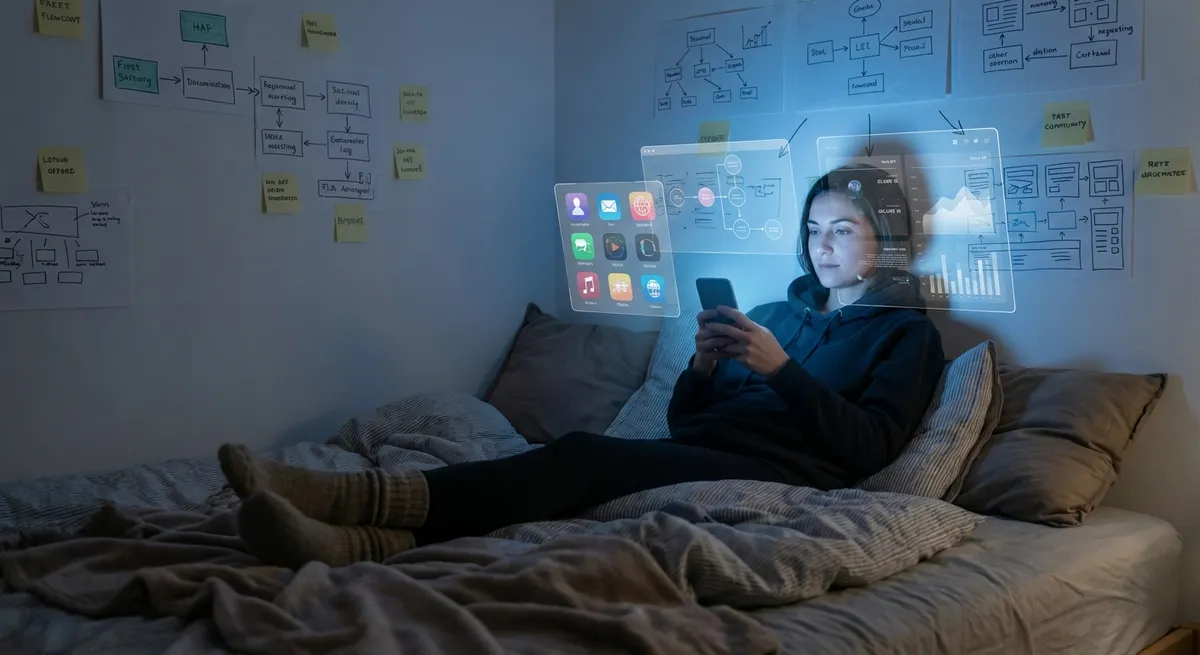
Most people use apps one at a time: open, tap, close, repeat.
Power users don’t. They stack apps together like Lego bricks to build their own custom workflows—no coding, no fancy automation tools, just clever combos and a bit of curiosity.
This isn’t about “productivity hacks” or grinding more hours out of your day. It’s about turning the apps you already have into a kind of personal operating system that actually feels fun to use.
Let’s walk through five genuinely interesting ways tech enthusiasts are quietly bending everyday apps into something way more powerful.
1. Turning Note Apps into Personal Search Engines
Most people treat note apps like digital junk drawers: a grocery list here, a random idea there, and a graveyard of forgotten meeting notes.
Power users treat them like searchable second brains.
Instead of asking, “Where do I save this?” they ask, “How will I find this later?” and then:
- Use one primary notes app (Notion, Obsidian, OneNote, Google Keep, Apple Notes—pick your poison) instead of scattering info everywhere.
- Add tiny tags or keywords at the bottom of notes, like
#idea,#project-x, orref: GPU benchmarks. - Save links from browsers, screenshots from chats, and quotes from articles into the same place, then rely on full-text search to do the heavy lifting.
The fun part: once you’ve been doing this for a few months, your note app becomes a time machine. Search “USB-C noise issue” and suddenly you’re looking at that obscure fix you saved last year from a random forum post.
You don’t have to remember stuff. You just have to remember that you saved it.
2. Screenshotting as a Workflow, Not a Mess
Your screenshot folder might look chaotic, but used well, screenshots are a secret weapon for moving fast between apps.
Power users use screenshots to:
- Capture receipts, order numbers, or tracking IDs from email or web and drop them into note apps or expense trackers.
- Grab UI bugs or weird app behavior and paste them straight into bug trackers, Slack, or Discord with quick markup.
- Screenshot chat messages (with context) and drop them into task managers like Todoist, Things, or TickTick as visual reminders.
The trick is to immediately send screenshots somewhere useful instead of letting them die in the Photos app. On most phones you can:
- Tap the screenshot preview and hit Share → send to a note, task, or cloud storage app.
- Use built-in markup tools to circle or highlight stuff before sharing, so you don’t have to explain everything later.
Once you start linking screenshots to tasks (“fix this UI bug,” “claim this reimbursement,” “follow up with this client”), your photo gallery goes from chaos to context.
3. Chat Apps as Command Centers (Not Just Distractions)
For a lot of us, chat apps (Slack, Discord, WhatsApp, Signal, Telegram) are where time goes to die. But with the right setup, they can become control rooms for your digital life.
Power users do sneaky things like:
- Create a DM with themselves (Slack, Discord, Telegram) as a universal inbox for:
- Ideas
- Links
- Voice notes
- Quick photos
- Forward messages from friends or coworkers into that DM and then react with an emoji (🟢 = done, ⏳ = waiting, ❗ = priority).
- Use chatbots and integrations:
- Send
/remindor bot commands to create tasks, reminders, or calendar events. - Pipe app notifications (GitHub, CI, smart home stuff, server monitors) into dedicated channels so your main chats stay human.
Instead of bouncing between 10 apps, they let everything funnel through one main chat app that’s always open anyway.
You’re already compulsively checking it—might as well make it useful.
4. Location and Time as Triggers (Without Going Full “Smart Home” Nerd)
You don’t need a smart home obsession to use location and time as triggers for app behavior. Your phone already has enough tools built in.
Power users mix apps with location/time like this:
- Location-based reminders
- “Remind me to check the Wi‑Fi speed when I get home.”
- “Remind me to buy thermal paste when I’m near the electronics store.”
- Time-blocked focus modes
- Set your phone to switch notification profiles at certain hours (work mode, gaming mode, sleep mode).
- Route only certain apps through during “focus” times—e.g., calendar + messaging, but no social feeds.
- Context-aware widgets
- Home screen widgets that show the right info based on time: tasks during the day, health stats or sleep apps at night.
Apps like Apple Reminders, Google Keep, Todoist, and others support location-aware alerts.
You’re not automating your whole life; you’re just letting your phone act a little smarter about when it bothers you and what it puts in front of your face.
5. Using “Dumb” File Storage as a Glue Layer Between Apps
Cloud storage (Google Drive, Dropbox, iCloud, OneDrive, etc.) seems boring until you realize it’s the neutral meeting ground for apps that don’t talk nicely to each other.
Power users use simple folders as glue:
- A “Transfer” folder where everything temporary lives: exports, logs, CSVs, recordings, and downloads that will jump between apps.
- Shared folders where:
- Phone apps dump recordings or photos.
- Desktop tools pick them up automatically for editing, backup, or processing.
- App backups stored as plain files (Markdown notes, JSON exports, CSV lists, PDFs) so you’re never locked into a single ecosystem.
Even cooler: some automation-lite workflows work entirely off file drops. You don’t need to know how to script—just set certain apps to “watch” a folder and do something whenever a new file appears.
It’s not flashy, but this kind of loose, file-based app stacking is how people quietly build personal systems that survive app fatigue, platform changes, and device upgrades.
Conclusion
You don’t need more apps. You need apps that talk to each other, even if it’s in simple, slightly hacked-together ways.
- Notes become a searchable memory.
- Screenshots become action items.
- Chat apps become control panels.
- Location and time become subtle triggers.
- Cloud folders become universal adapters.
That’s app stacking: taking normal tools and combining them in ways that feel oddly satisfying—like building your own mini operating system on top of the one your phone came with.
If you’re a tech enthusiast, this is the fun part: not just using software, but bending it to fit how your brain already works.
Sources
- [Google Keep Help: Create, edit, & format notes](https://support.google.com/keep/answer/6108276) – Official Google documentation on using labels, reminders, and organization features in a lightweight notes app.
- [Apple Support: Use Reminders on iPhone](https://support.apple.com/guide/iphone/use-reminders-iph3d1110d4/ios) – Explains time- and location-based reminders and how they tie into daily workflows.
- [Microsoft OneNote Help & Learning](https://support.microsoft.com/en-us/onenote) – Overview of search, tagging, and cross-device syncing that support “second brain”-style note systems.
- [Dropbox Help Center: How to use Dropbox](https://help.dropbox.com/getting-started/overview) – Details on using cloud storage as a shared layer between apps and devices.
- [Slack Help Center: Slackbot and reminders](https://slack.com/help/articles/208423427-Set-a-reminder) – Shows how chat apps can be used as simple command centers with reminders and self-DMs.
Key Takeaway
The most important thing to remember from this article is that this information can change how you think about Apps.