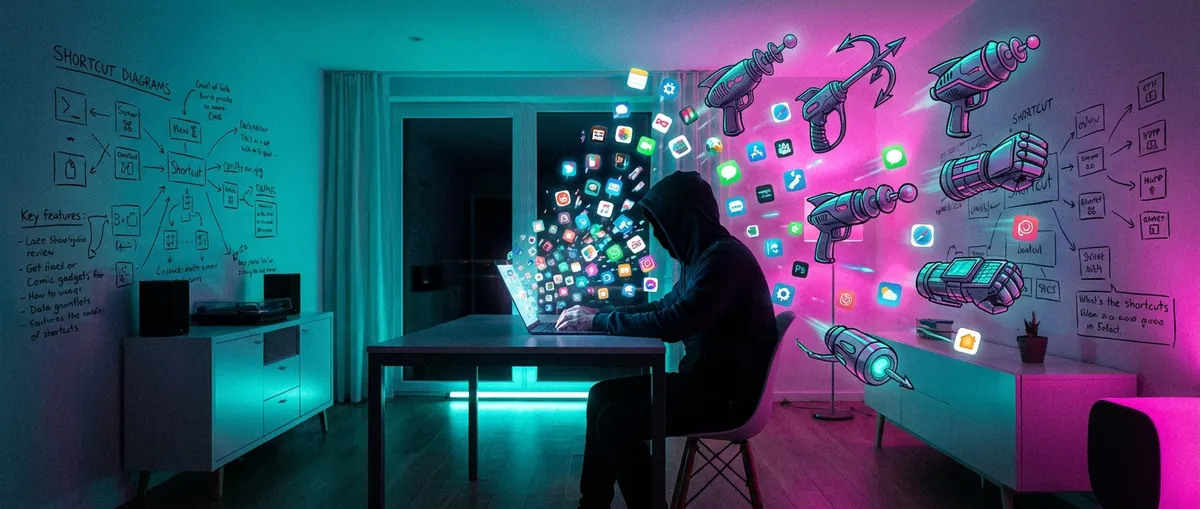
Most people use apps the way they arrive out of the box: install, tap, done. But buried under the obvious stuff are features that basically turn normal apps into low-key superpowers — the kind that tech nerds love showing off and everyone else assumes is “some hacker thing.”
This isn’t about having more apps. It’s about squeezing way more out of the ones you’ve already got (or should get), without needing a CS degree or a 40‑minute YouTube tutorial.
Let’s dig into five genuinely interesting app behaviors and features that are hiding in plain sight.
1. Apps That “Talk” To Each Other Behind The Scenes
You know how you manually save an attachment from email, upload it to cloud storage, then message the link to someone? Apps can already do that for you — quietly.
Automation tools like IFTTT, Zapier, and Apple Shortcuts let apps trigger each other without you lifting a finger. But a lot of mainstream apps now build this kind of “auto-connect” right in:
- Email apps that automatically dump receipts into a budgeting app
- Note apps that sync tasks straight into your to‑do list
- Cloud storage apps that auto‑sort your photos into albums based on content
What’s wild is that much of this happens through APIs — basically the secret backdoors apps use to pass data around. You don’t see the wiring, you just see:
- A file magically show up where you need it
- A reminder appear at the right time
- A note turn into a calendar event
For tech enthusiasts, the fun is in chaining these together. One trigger in one app can ripple into four others: a screenshot becomes a logged expense, a saved article becomes a task, a calendar event becomes an automated status message. Your apps start behaving less like separate tools and more like a little software crew that actually talks to each other.
2. “Offline‑Smart” Apps That Don’t Freak Out Without Internet
Most people think an app is either online or offline. But some of the best ones live in the messy middle: they keep working smoothly when your internet is trash, then sync everything up later like nothing happened.
Think about:
- Maps apps that let you download entire regions so navigation still works in airplane mode
- Note apps that save locally first, then push to the cloud when you reconnect
- Music and podcast apps with smart download rules so your commute is always covered
The cool part is how quietly these apps handle conflict. If you edited the same note on your laptop and your phone while offline, the app has to merge those changes without turning your life into a jigsaw puzzle.
Apps that are “offline‑smart” do a few subtle but powerful things:
- Cache more than you realize (not just files, but interface elements and recent actions)
- Queue your actions (like messages or edits) and send them later
- Flag conflicts instead of just overwriting, so you can pick the right version
To most users, it just feels like “this app never breaks.” But under the hood, handling flaky connections gracefully is one of the more underrated pieces of app design — and it’s why some apps feel “reliable” and others feel like they’re constantly scolding you for having bad Wi‑Fi.
3. Keyboard Shortcuts And Hidden Gestures That Change Everything
There are two types of people: those who tap everything like it’s 2008, and those who live in the secret world of gestures and shortcuts.
A ton of popular apps ship with:
- Keyboard shortcuts that can do almost everything without touching the mouse
- Swipe gestures that trigger power moves (archive, snooze, quick reply, mark as done)
- Long‑press menus that hide features you’d never find in normal navigation
Examples you might already have on your phone or laptop:
- Email apps where you can triage an entire inbox with just swipe patterns
- Notes apps where Cmd/Ctrl + Shift + something drops a timestamp, creates a task, or links notes together
- Browser apps where holding down a link opens background tabs, split views, or reader modes
The reason tech folks obsess over this stuff: once you learn the gestures and shortcuts, the app basically speeds up your brain. You stop thinking “how do I do this?” and start just doing it.
If you want to feel like a wizard with the apps you already use:
- Open the app’s settings and look for “Shortcuts” or “Gestures.”
- Screenshot or print the list of your top 10 most-used actions.
- Force yourself to use only those shortcuts for a week.
You’ll never go back to the slow, all‑mouse, all‑taps life again.
4. Apps That Quietly Build A Memory Of You
Some apps don’t just store your data — they slowly build a memory of your habits, your patterns, and the way you like to do things.
You see it in:
- Music apps that start nailing your “Discover” or “For You” playlists
- Reading apps that suggest articles at the times you usually open them
- Photo apps that surface old memories around certain dates or places
Under the surface, a lot of them are using:
- How long you spend on certain items
- What you skip vs what you finish
- When and where you tend to use the app
Over time, that turns into personalized behavior:
- Your news app shows longer reads at night, quick updates in the morning
- Your workout app adjusts intensity based on when you usually back off
- Your language app spaces reviews based on what you keep forgetting
For tech enthusiasts, this is a double‑edged sword in an interesting way. On one hand, it’s genuinely useful: the app feels like it “gets” you. On the other hand, it raises fun questions about how much an app should adapt — and at what point personalization stops being helpful and starts feeling creepy.
Either way, once you notice it, you can’t unsee it: your apps are less like static tools and more like evolving profiles of who you are as a user.
5. Tiny UI Choices That Make Apps Weirdly Addictive (Or Calming)
Why do some apps feel chill and others feel like your brain is being shouted at?
A lot of it comes down to small, deliberate design choices:
- The color of notification badges (red = urgency, blue/gray = “check when you can”)
- The delay before a notification appears (instant vs batched on a schedule)
- The micro‑animations when you complete something (subtle check vs confetti explosion)
Some productivity apps now go out of their way to be calming instead of addictive:
- Gentle sounds instead of notification pings
- Fewer bright colors, more muted, neutral tones
- Visuals that emphasize completion over “what you still haven’t done yet”
On the flip side, social and entertainment apps often use:
- Infinite scroll to erase the sense of “stopping point”
- Variable rewards (not every refresh gives something good, which keeps you trying)
- Bold color contrasts to drag your eyes to specific buttons
If you’re into tech, watching for these patterns becomes a kind of sport. You start noticing:
- Which apps feel like tools
- Which apps feel like slot machines
- Which ones are trying to move from one category to the other
Once you spot these design choices, you can be more intentional: lean into the apps that make you feel in control, and lock down notifications or usage time on the ones that are designed to eat your attention.
Conclusion
Most people judge apps by their logos and basic features. But the fun stuff — the stuff tech enthusiasts love — lives one layer deeper:
- Apps quietly “talking” to each other
- Offline‑smart behavior that saves you when your connection dies
- Secret shortcuts and gestures that speed everything up
- Personalized behavior that feels almost… familiar
- Tiny design decisions that shape how you feel while using them
You don’t need a whole new stack of fancy tools to enjoy this. Just pick two or three apps you already use every day, dive into their settings and “advanced” or “labs” sections, and flip on the features you’ve been ignoring.
The superpowers are already installed — you just have to unearth them.
Sources
- [Apple Shortcuts User Guide](https://support.apple.com/guide/shortcuts/welcome/ios) – Official documentation on creating automations and connecting apps on iOS
- [IFTTT – How It Works](https://ifttt.com/explore/how-it-works) – Overview of how apps and services can be chained together through triggers and actions
- [Google – Make Maps Available Offline](https://support.google.com/maps/answer/6291838) – Details on how offline maps work and what’s stored on your device
- [Nielsen Norman Group – Infinite Scrolling Best Practices](https://www.nngroup.com/articles/infinite-scrolling/) – UX research on scrolling, engagement, and user experience in apps
- [Harvard Business Review – The Problem with Persuasive Technology](https://hbr.org/2019/03/the-problem-with-persuasive-technology) – Discussion of design patterns that make apps sticky (and sometimes addictive)
Key Takeaway
The most important thing to remember from this article is that this information can change how you think about Apps.