We talk a lot about “the best apps,” but not nearly enough about how we actually use them. It’s not just what’s on your phone—it’s the weird little patterns, shortcuts, and hidden features that quietly shape your day.
Let’s dig into some app behavior that most people never think about, but every tech enthusiast will find oddly fascinating—and maybe a little too relatable.
1. Your Apps Know Your Routine Better Than You Do
Even if you’ve never opened a “productivity” app in your life, your phone is quietly building a picture of your daily rhythm.
Most apps track basic usage (how often you open them, when, and for how long). Combined with your phone’s built-in analytics (like Screen Time on iOS or Digital Wellbeing on Android), that data tells a story:
- Which app you reach for when you’re bored
- What time of day you’re most likely to scroll
- Which days you’re “on it” vs. “totally fried”
Developers use this info to send notifications when you’re most likely to tap, tweak algorithms so feeds feel “alive” when you open them, and even decide when to roll out features or pop-up prompts.
The fun part: once you realize this is happening, you can flip it around and use those same patterns for yourself. Check your screen-time stats and see:
- What’s your “default distraction” app?
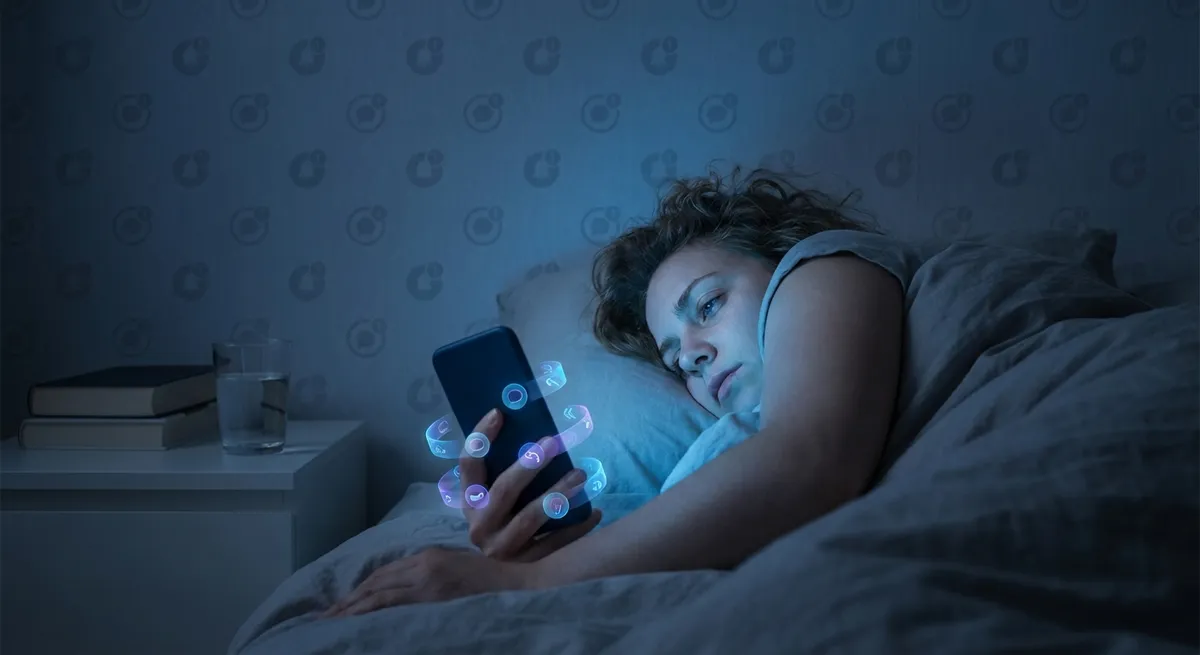
- What app do you open just before bed?
- Which app spikes on stressful days?
That’s free data about your habits—no fancy self-tracking needed.
2. Offline-Ready Features Are Hiding in Plain Sight
We tend to think of most apps as “dead” without internet, but a surprising number quietly double as offline tools.
A few examples that tech lovers often underuse:
- Maps apps: Google Maps and Apple Maps both let you download areas for offline navigation. Great for travel, but also for saving battery/data at home.
- Streaming apps: Spotify, YouTube Music, Netflix, and others let you download content so commuting doesn’t destroy your signal or your mood.
- Note and doc apps: Google Docs, Notion, and Microsoft 365 have offline modes that sync as soon as you’re back online.
This isn’t just convenient—it’s power-user level smart. You can:
- Prep your commute the night before by caching music, maps, and reading apps
- Edit documents on a plane or train without worrying about Wi‑Fi
- Turn your phone into a “distraction-limited device” by relying on offline apps when you want to be unreachable
The trick: go into your most-used apps’ settings and literally search for “offline” or “download.” You’ll probably find a feature you’ve never touched.
3. The Home Screen Is Basically Your Personal OS
Your home screen layout is more than just “what looked nice that day.” It’s a mini operating system you’ve built for yourself—intentionally or not.
How you place apps says a lot about how you think:
- By color: Your brain is visually mapping, not reading names
- By category/folders: You’re grouping tasks into “modes” (work, social, media, tools)
- By muscle memory: The apps in reach of your thumb are your “priority shortcuts”
For enthusiasts, this is where you can really nerd out:
- Use widgets to turn your home screen into a dashboard (calendar, tasks, battery, notes, weather)
- Create focus-based layouts (some Android launchers and iOS Focus modes let you swap whole home screens depending on time or mode)
- Move “bad habits” off the first screen and “good friction” apps (notes, reading, task managers) into prime spots
You don’t need a new phone to level up your experience. Just reorganizing your icons can completely change how you interact with your device.
4. Keyboard Apps Are Doing Way More Than Typing
The humble keyboard app might be the most underrated supertool on your phone.
Modern mobile keyboards—Gboard, SwiftKey, Apple’s keyboard—do a ton behind the scenes:
- Learn your writing style and favorite phrases
- Predict entire words or sentences before you finish typing
- Auto-translate in real time (Gboard can type in your language while sending in another)
- Offer clipboard history and quick access to links you’ve recently copied
And that’s just the built-in stuff. Power users can go further:
- Text shortcuts: Turn “/addr” into your full address, “/email” into your email, “/sig” into your signature
- Multilingual typing: Let the keyboard detect which language you’re using without switching manually
- Voice + glide typing: Mix voice input and swipe typing to fly through longer messages or notes
You’re already using your keyboard constantly; a tiny bit of setup turns it into a personal automation tool instead of just a letter machine.
5. Notification Settings Are a Hidden Superpower
Most people treat notifications like weather: they just kind of… happen. But your notification panel is one of the most powerful control centers hiding in plain sight.
Under the hood, you can usually tell apps:
- What kind of alerts they’re allowed to send (messages vs. promos vs. “we miss you” nudges)
- Whether they can appear on your lock screen
- If they can make sound, vibrate, or stay silent
- Whether they’re allowed to use “urgent” modes like badges and banners
For enthusiasts, this turns into a full-on system:
- Priority tier: Messaging, calls, and calendar get full alerts
- Silent tier: Social media and shopping apps allowed, but no sound or vibration
- Dark tier: Some apps get no notifications ever—open them when you decide
You end up with a phone that still keeps you looped in, but doesn’t hijack your attention every five minutes. Same apps, same hardware—completely different experience.
Conclusion
We obsess over what apps to install, but the really interesting stuff is how we use them—and how they quietly adapt to us in return.
From hidden offline modes to personal OS-style home screens and keyboards that basically know your next sentence, our phones are full of semi-secret features that only show up when you start poking around.
If you’re a tech enthusiast, this is the fun part: not just downloading new apps, but treating the ones you already have like a playground. Tweak settings. Rearrange screens. Dive into notification options. Your future self (and your battery) will quietly thank you.
Sources
- [Apple – About App Analytics & Privacy](https://developer.apple.com/app-store/user-privacy-and-data-use/) – Explains how app usage and analytics data are collected and used on iOS
- [Google – Digital Wellbeing](https://wellbeing.google/) – Overview of how Android tracks app usage, screen time, and habits
- [Google Maps Help – Download Offline Maps](https://support.google.com/maps/answer/6291838) – Official guide to using offline maps for navigation
- [Microsoft SwiftKey Support – Features](https://support.swiftkey.com/hc/en-us/categories/115000016469-Microsoft-SwiftKey-Android) – Details on keyboard prediction, multilingual typing, and personalization
- [Android Help – Manage Notifications](https://support.google.com/android/answer/9079661) – Breakdown of notification channels, priority, and customization options on Android
Key Takeaway
The most important thing to remember from this article is that following these steps can lead to great results.